Contents · choose a chapter
Sign in → Console settings → Connect stream → Start playing. Changes save automatically.
START HERE · KEEP THIS GUIDE
2K Magic illustrated user guide
For version 1.0.249 · PS5 / Xbox streaming on a Windows PC. Software screenshots come from the 1.0.249 release; accounts and settings are examples. Connect your console and set up the game before choosing a play style, distance and release lead.
1. Latest support and available modes
| Feature | Current support |
|---|---|
| Consoles and PC | PS5 and Xbox; run the console streaming edition on 64-bit Windows 10/11. |
| NBA 2K27 Street King | Scoring + Rebounds, Assist + Rebounds, and Finishing. |
| Street King shot methods | Request & shoot, Step-back (any position), Step-back (random 45°), Pick & roll, Pick & roll + step-back, Left corner step-back (right hand), Right corner step-back (left hand). |
| NBA 2K27 Open Court | Scoring with three-point, two-point or corner positioning. This corner option is separate from the Street King corner step-backs. |
| Multiple instances | Add and switch instances within one app. Each has its own console configuration and license key. |
| Lock Green | Automatic tasks and manual keyboard shooting with V or I/J/K/L on PS5/Xbox. Targets the top of the green window using your release lead. |
| Diagnostic recording | Diagnostic 1.16.36 records compressed video, keyboard events and held-key durations. Offense-only recording is on by default. Its existing console connection is PS5. |
NBA 2K26 remains in the game selector; available courts and tasks follow the selected game. Detailed examples below use NBA 2K27. The Steam standalone edition has separate setup and key instructions; do not use these console pairing steps for it.
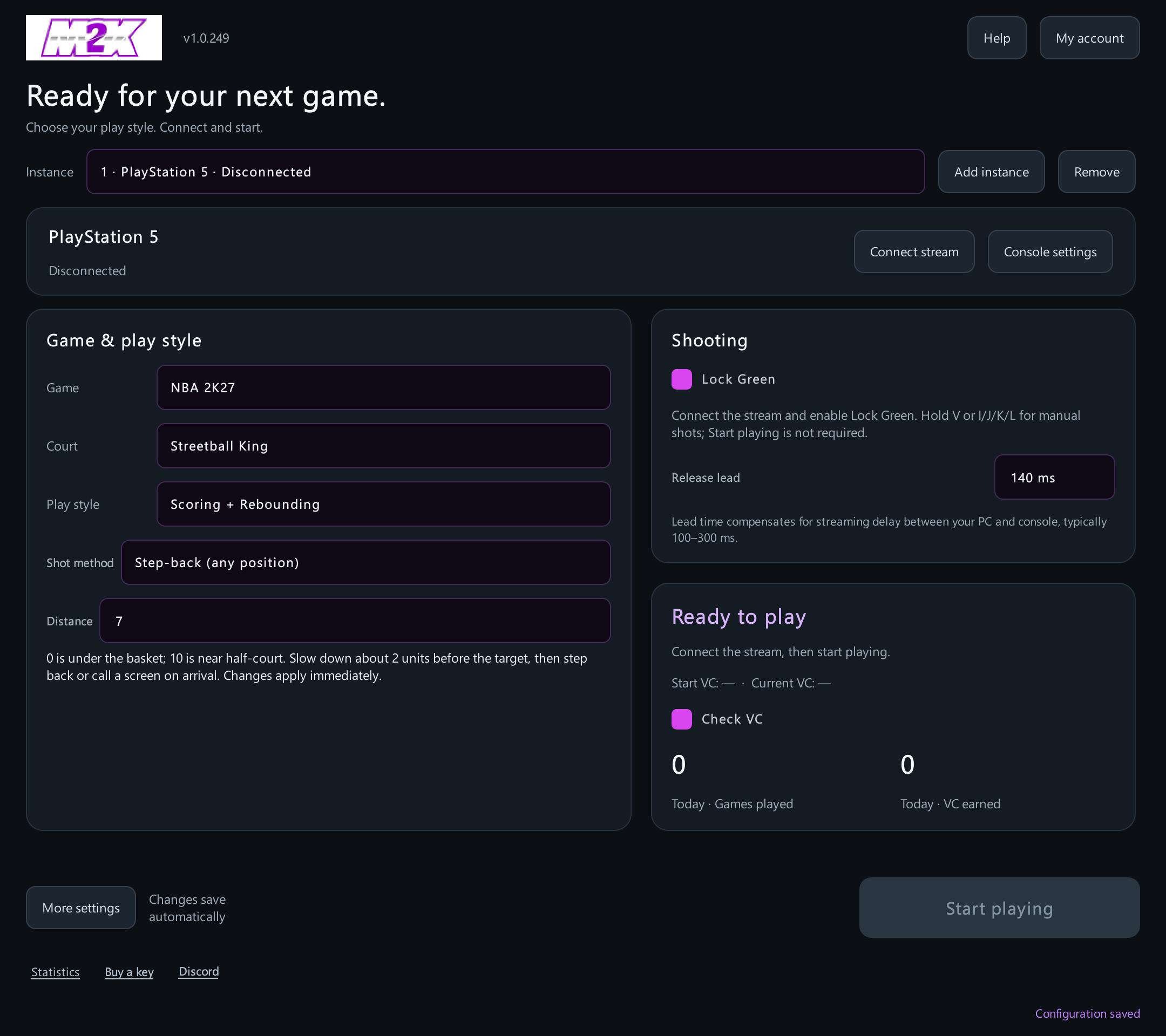
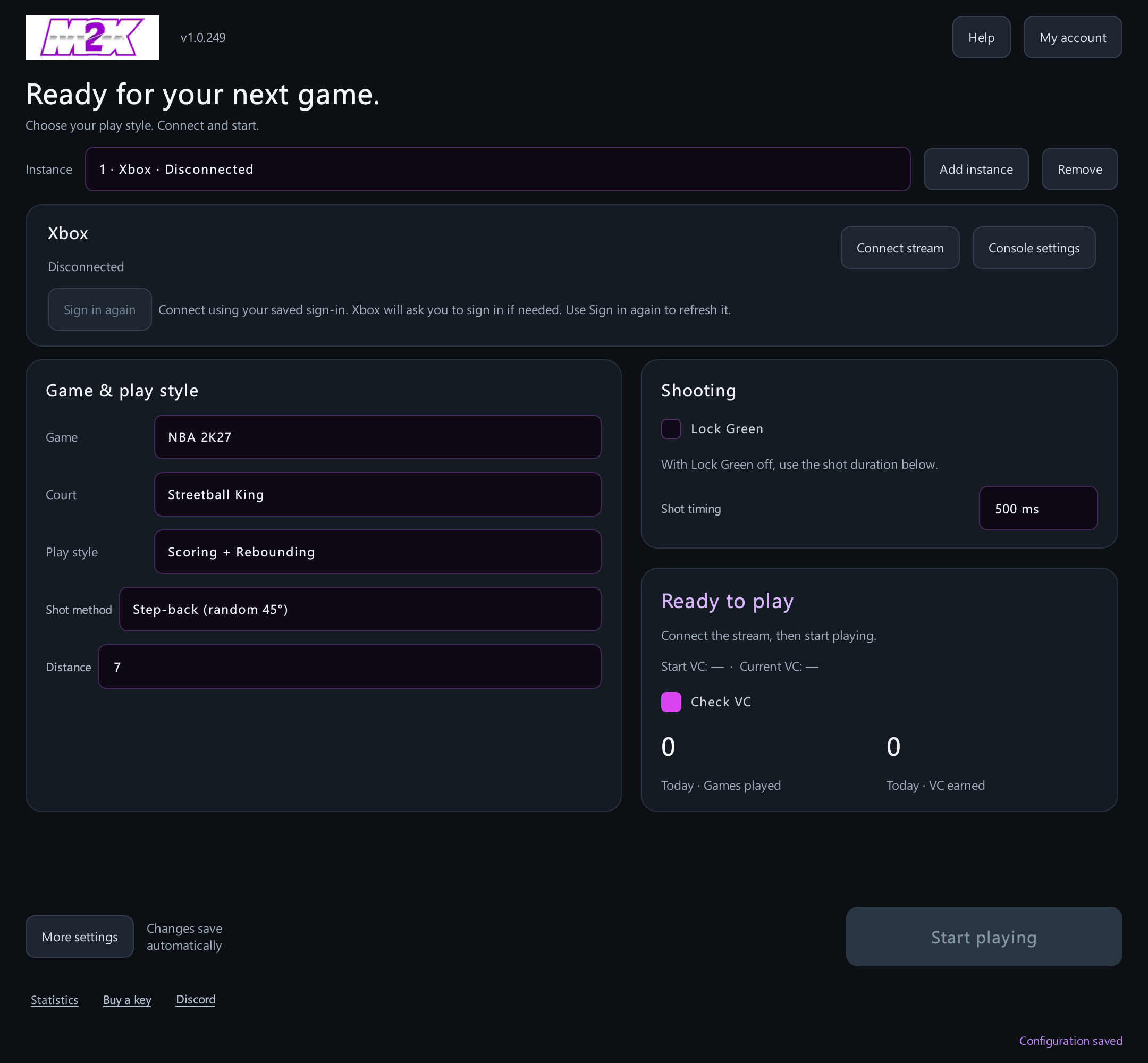
The current instance is selected at the top. Changes save automatically. Scroll the middle of the window if some settings are below the visible area.
2. Installation, license keys and multiple instances
- Close the old app, run the latest installer and install to C:\2KMagic.
- Select your game and open My account. For NBA 2K27, sign in with your own valid license key or existing account. New users can choose License key sign-in.
- Return to the home screen and configure the console. License validation and connecting the console stream are separate steps.
- To run another stream, choose Add instance. Use a separate license key for each instance and configure its actual console and account.
- Use the Current instance selector to switch pages. Other running instances continue; their shot settings and statistics stay separate.
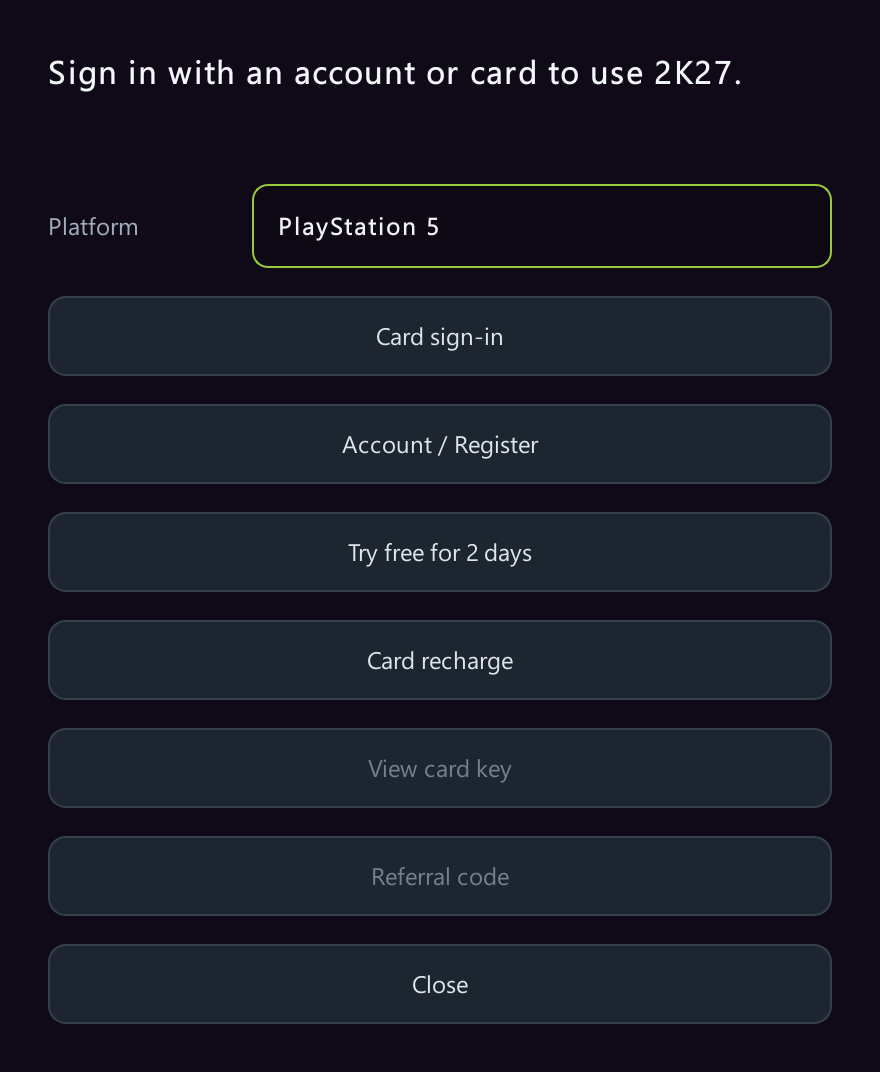
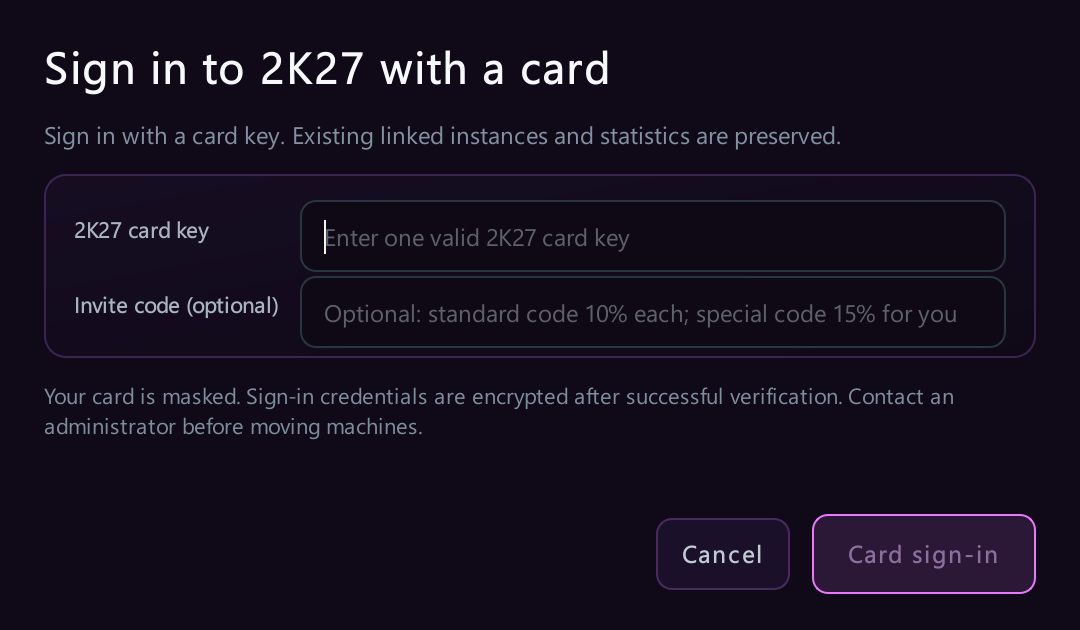
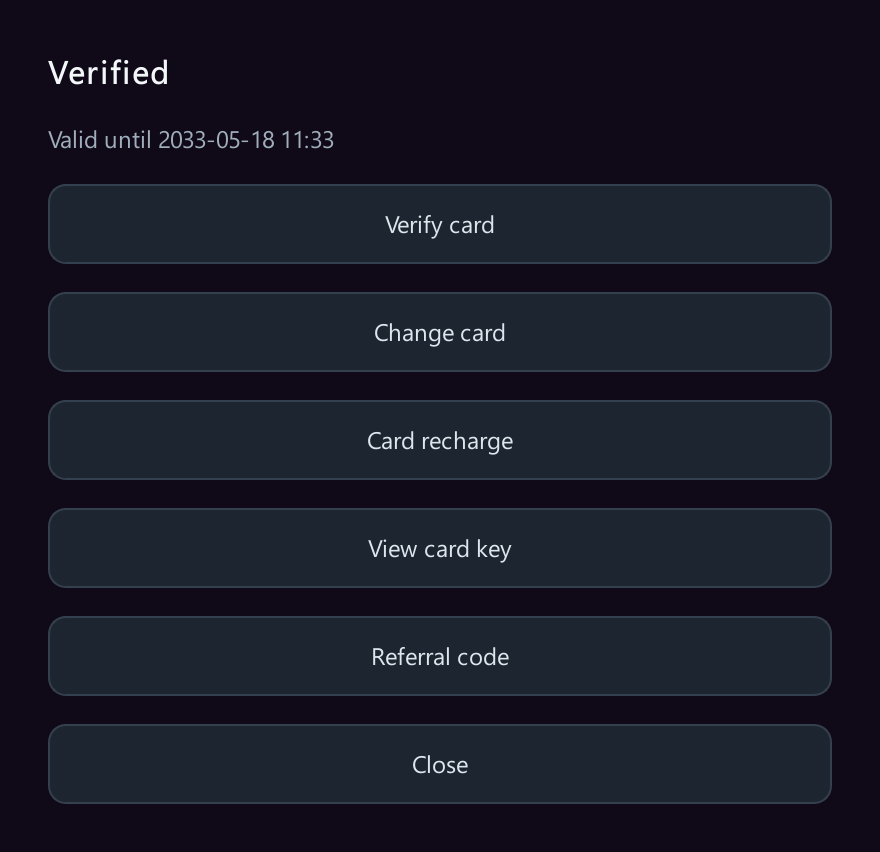
Use Recharge with key to renew the current account. Use Change key to switch to another key, stopping and disconnecting the current instance when prompted. If a machine-bound license needs to move to another PC, contact the administrator for manual unbinding. Keep keys, passwords and pairing details out of screenshots.
3. Connect and wake a PS5
- Prefer Ethernet for both the PC and PS5 on the same local network.
- On PS5, enable Settings → System → Remote Play → Enable Remote Play.
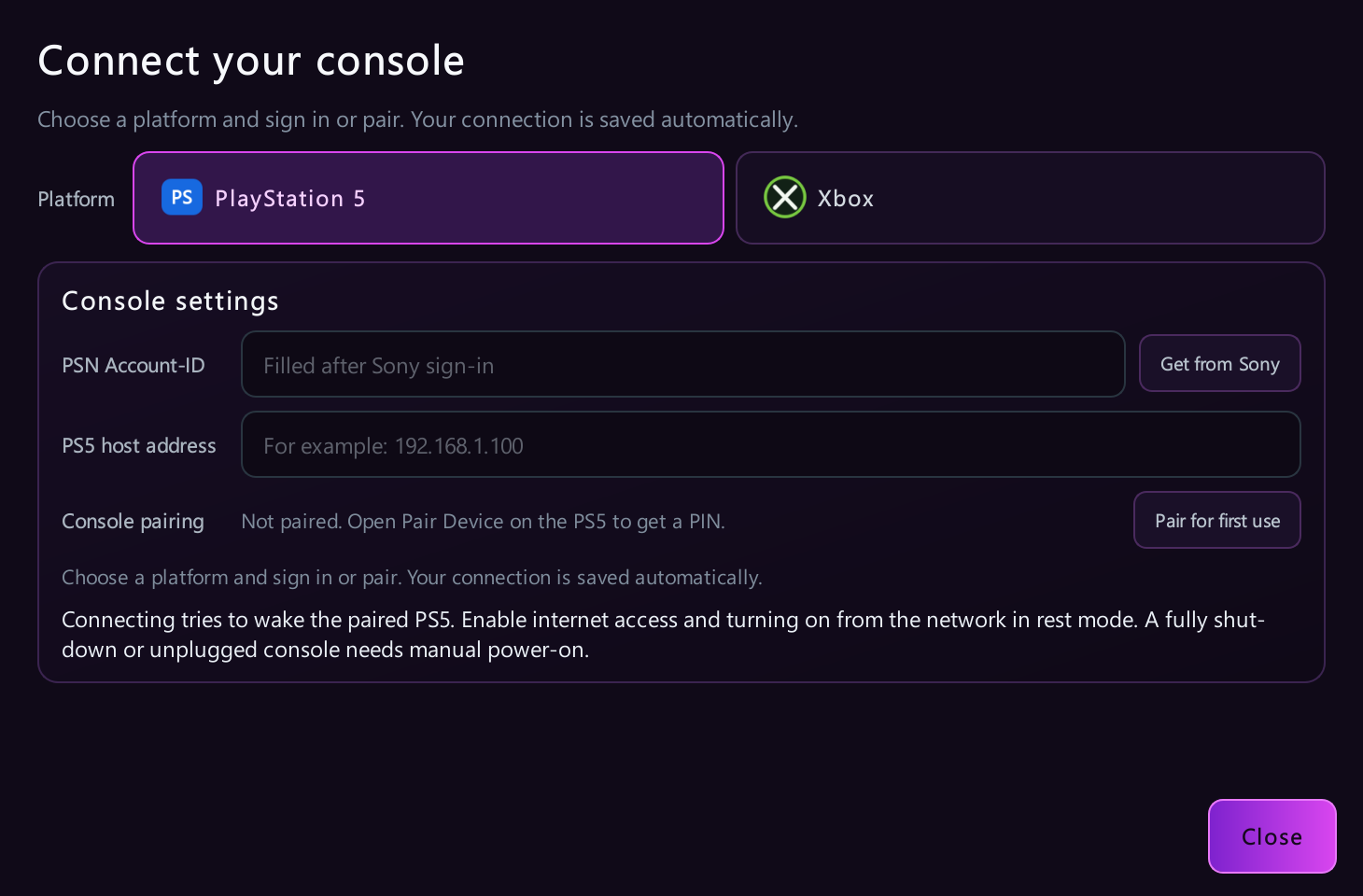
- In the app, open Console settings → PlayStation 5. Use Sign in with Sony to obtain the console account's PSN Account-ID. This is not your online nickname or email address.
- Enter the PS5's local IP address. Open Link Device in the console's Remote Play settings, then select First pairing in the app and enter the displayed code.
- Return to the home screen and select Connect stream. Check that the picture and controls work before starting an automatic task.
The connection flow can try to wake a paired PS5 from rest mode. Enable internet access in rest mode and network wake. A fully powered-off or unplugged console needs to be turned on manually. Close other Remote Play clients connected to the same console.
4. Xbox sign-in, streaming and wake
- On Xbox, enable Settings → Devices & connections → Remote features and complete its test.
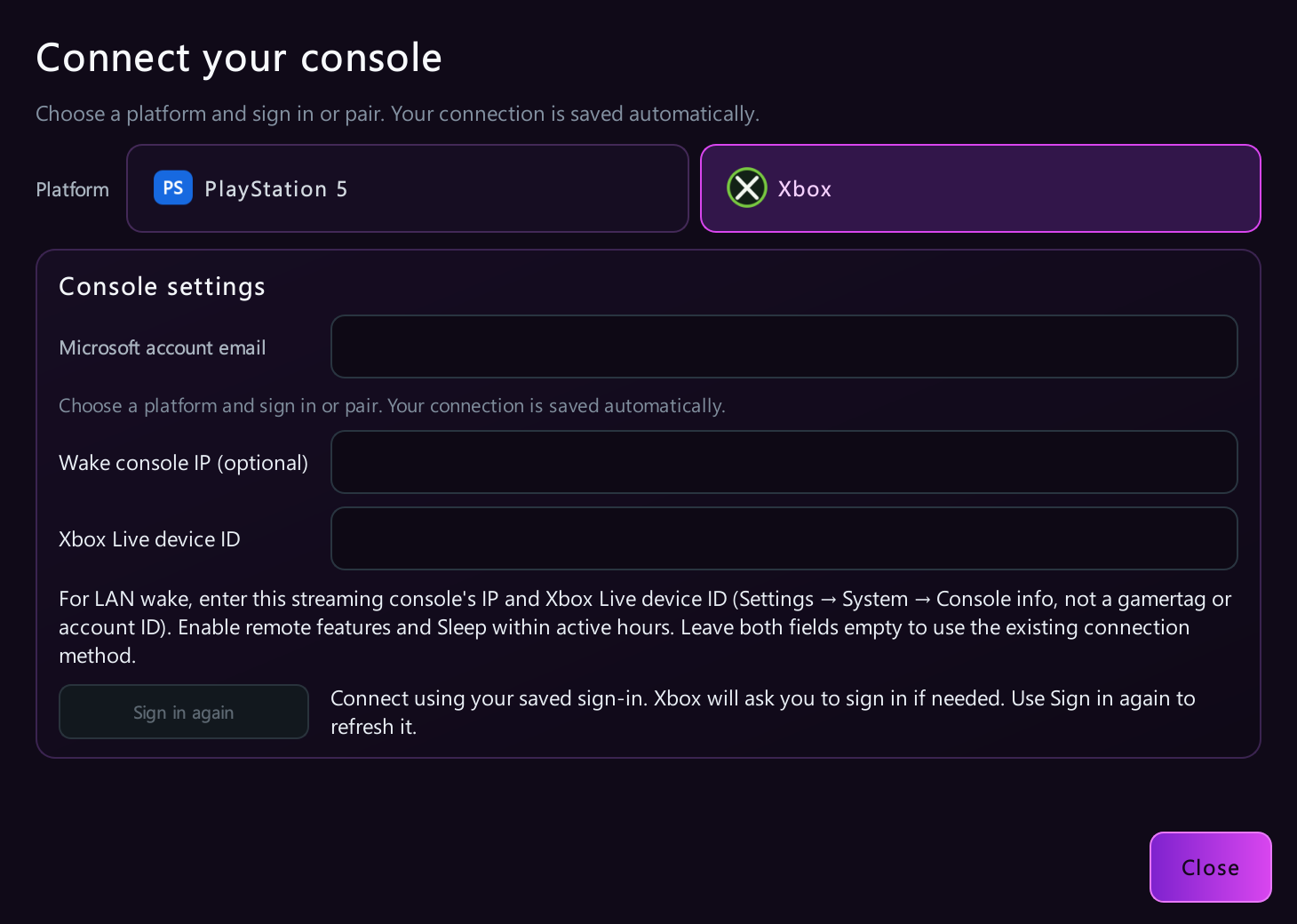
- Open Console settings → Xbox in the app and enter the corresponding Microsoft account email.
- On the main Xbox panel, select Web sign-in / Sign in again first. Complete authorization on Microsoft's page. Enter your Microsoft password only there.
- Once a Token is available, select Connect stream. An existing valid Token can be reused; use Sign in again to change accounts or renew authorization.
- Start the task after the picture is working. With multiple instances, check that every picture matches the intended account and console.
For local-network wake, you can enter Wake console IP and Xbox Live device ID. Find the device ID under Settings → System → Console info; it is not a gamertag or MAC address. Enable Remote features and sleep settings, and keep the console connected. Leaving both fields empty keeps the normal connection method. Wake cannot power an unplugged console.
5. Required in-game settings
| Page | Setting |
|---|---|
| Player indicator | On; Basketball image; Purple color; Large size. Check every game account separately. |
| Shot meter | Enable shots, dunks/layups and free throws; Tube image; Large size; Side position. |
| Takeover icon | None. |
| Shot feedback | All shots, top center, with distance, timing, free-throw rating and coverage displayed. Useful for your own review and support recordings. |
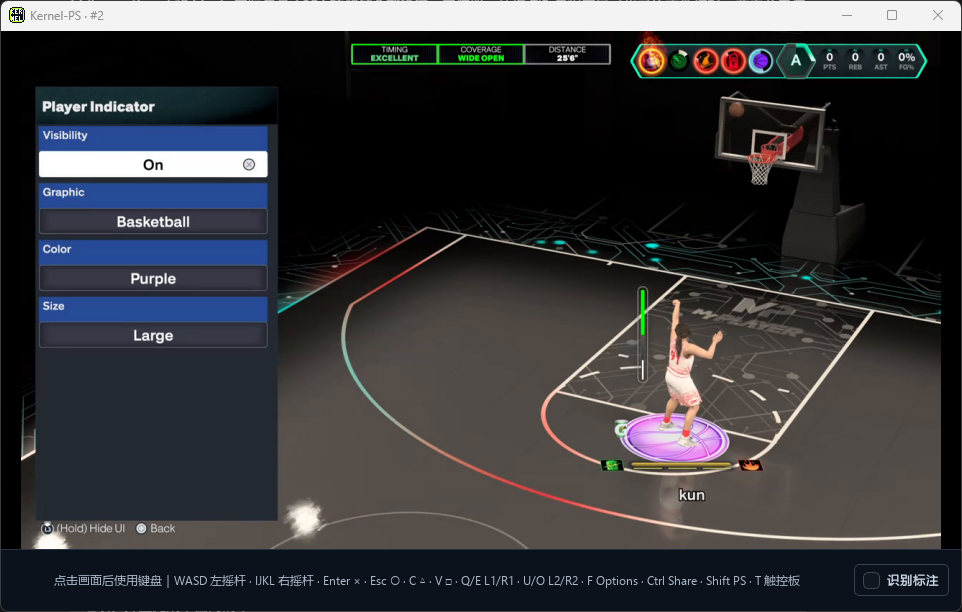
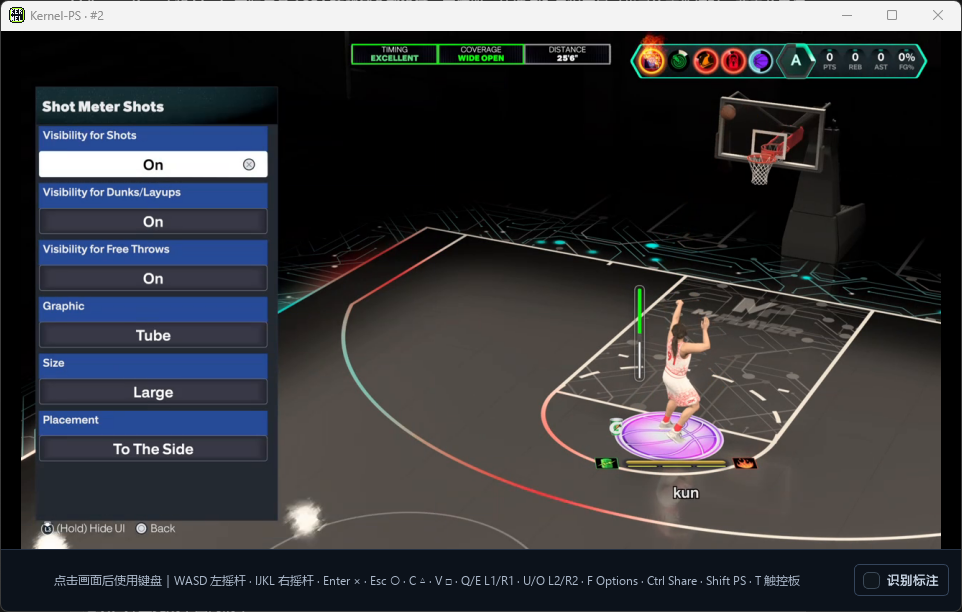
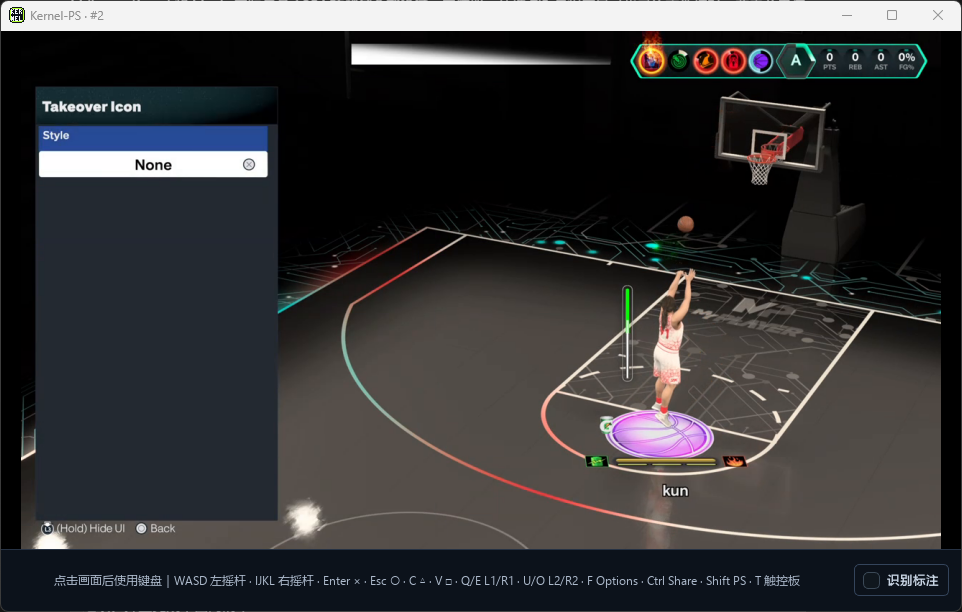
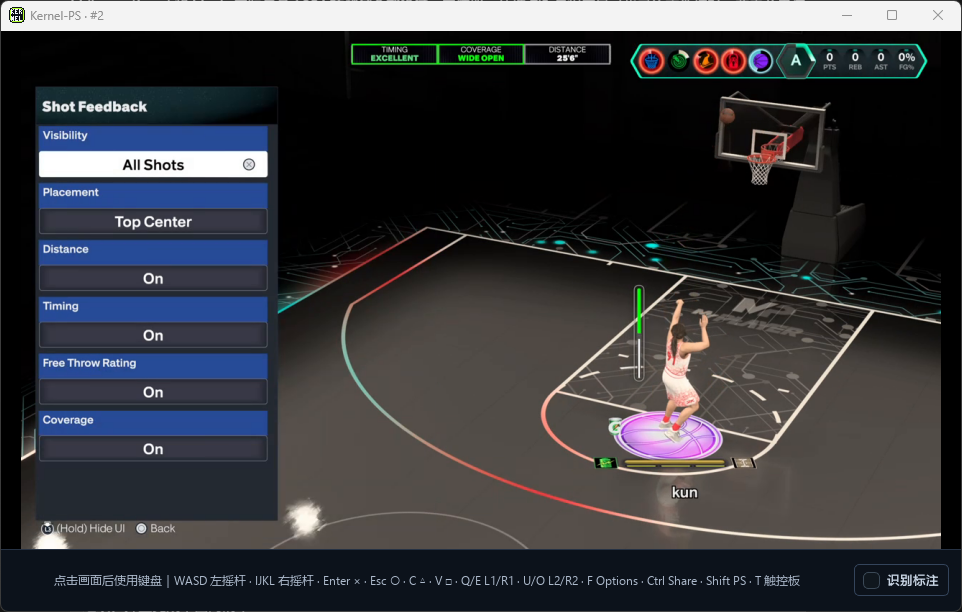
Back on court, check the purple basketball indicator and the complete vertical meter beside your player. Lock Green predicts release from the meter image; it does not read shot-feedback text to adjust compensation.
6. Choose from seven Street King shot methods
Select Street King → Scoring + Rebounds → Shot method. The first five methods below use Distance. The two new corner step-backs do not, so their Distance field is hidden.
| Shot method | Behavior and setup |
|---|---|
| Request & shoot | Reach the selected position, call for the ball and shoot. A simple starting point. |
| Step-back (any position) | Approach the selected distance diagonally toward the court interior. The first shot after a possession change starts on arrival; later shots in the same possession use small lateral movement. Uses rhythm shooting, right stick down then up. |
| Step-back (random 45°) | Selects a wing: approximately 80% left and 20% right. Small inward movement can follow arrival. Movement stops about 500ms after the shot starts. Uses rhythm shooting. |
| Pick & roll | Hold Q at the chosen distance. After the screen icon appears, wait two seconds, then use the selected movement or escape action and shoot. |
| Pick & roll + step-back | Call a screen at a randomly chosen left/right 45° spot. Choose a diagonal retreat, lateral step-back or signature shot. |
| Left corner step-back (right hand) | Probe possession with Q, then move left and sprint forward. Keep W held through O+J at the left launch area. |
| Right corner step-back (left hand) | Mirror the left mode: move right, sprint forward and keep W held through O+L. |
Pick & roll options
Normal Pick & roll offers A/D movement or O + diagonal-up right-stick dribble. A/D moves for 800ms, then waits 400ms before shooting. There is no escape-time field to fill in. Both options support Lock Green.
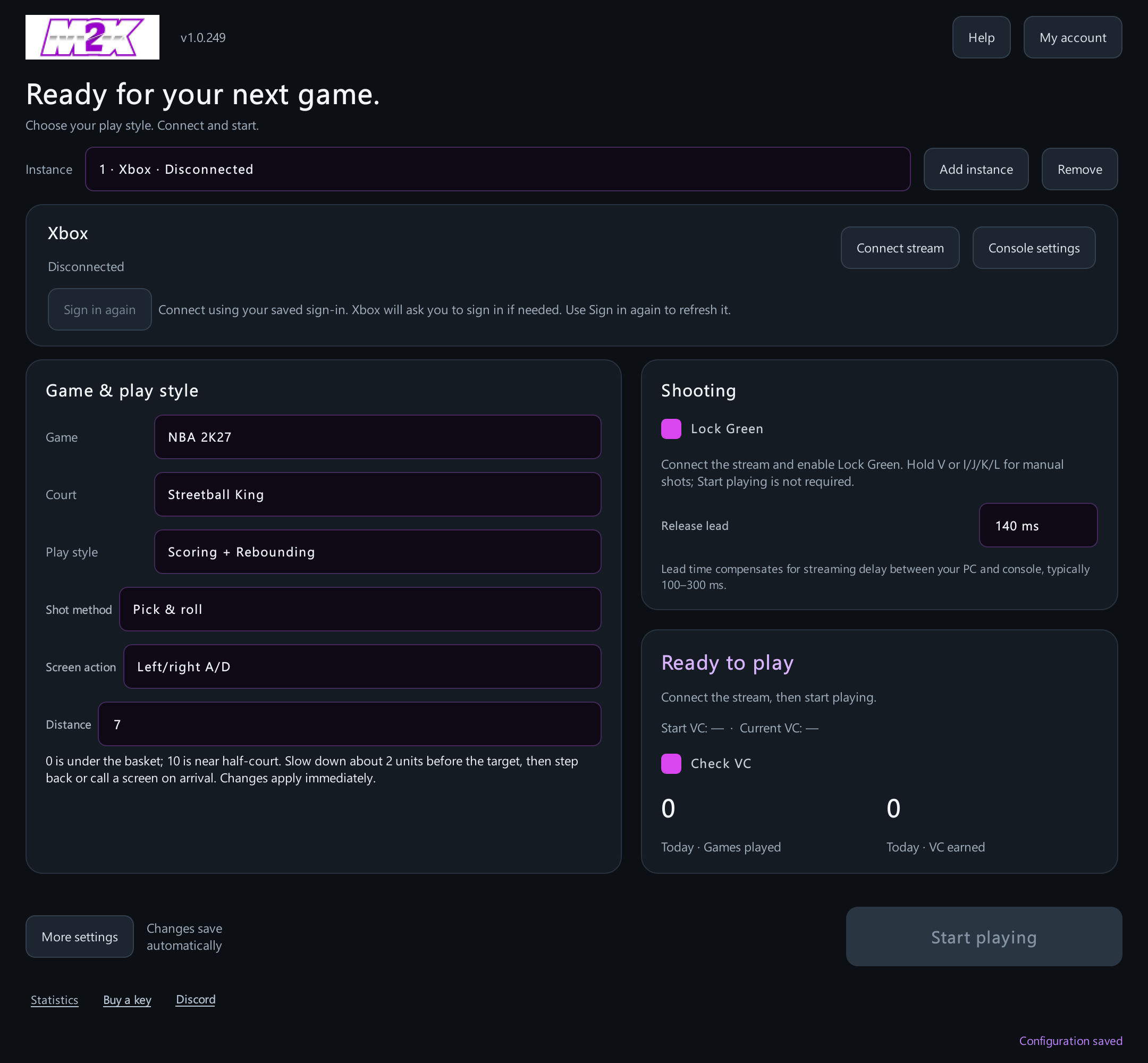
Pick & roll + step-back offers Diagonal O+K+J/L, Lateral O+J/L, and Signature O+I. The shot stick releases directly when Lock Green triggers. Its two-second Q wait starts when the screen icon is recognized. A call without a recognized icon also ends; Q is not held indefinitely.
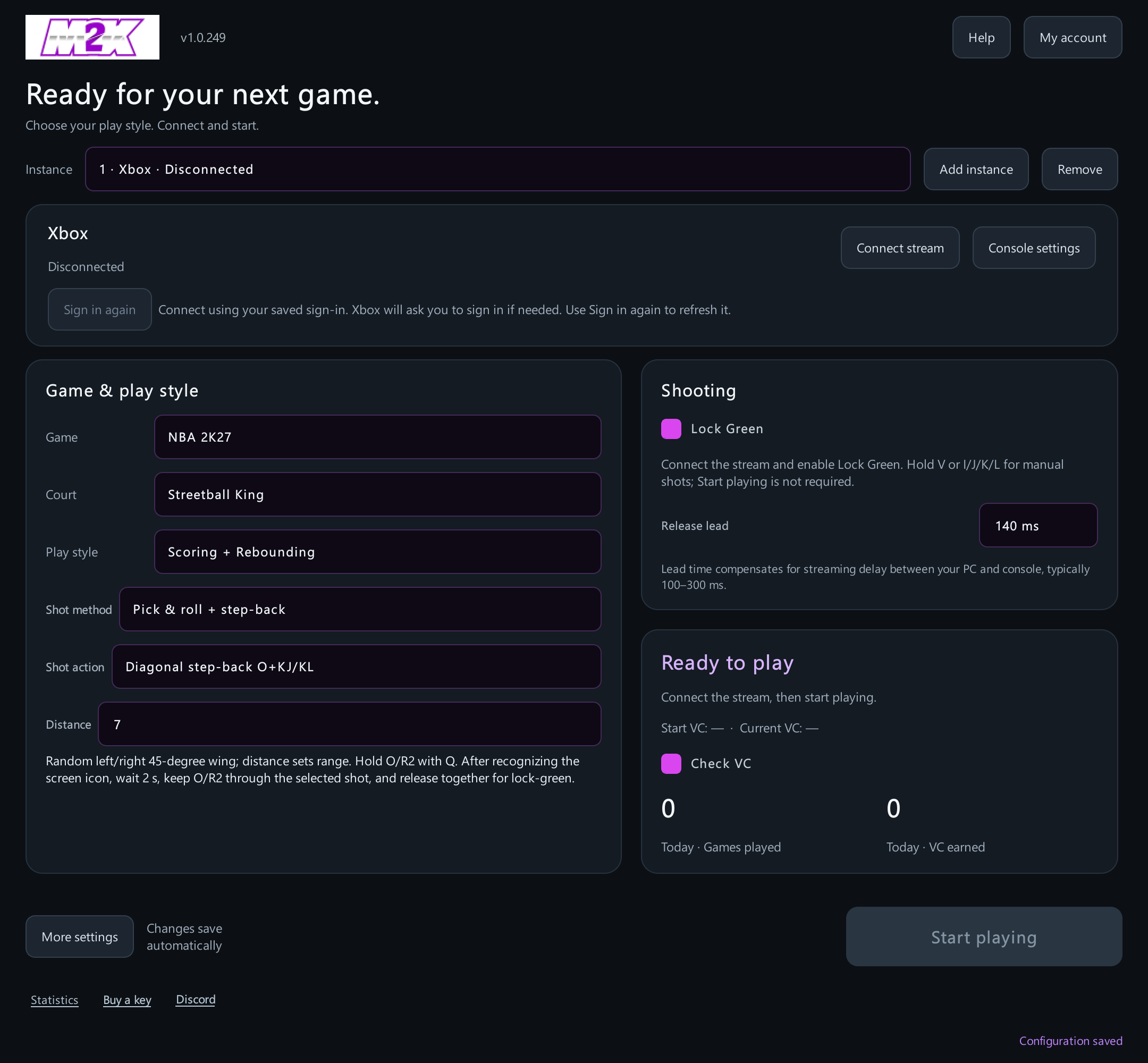
New left and right corner step-backs
Choose the side that matches your player's shooting hand. On offense, hold Q to probe possession. If the screen icon appears, release Q and start moving across, then forward. If no icon appears within two seconds, release Q, press Enter to request the ball, then try again. Keep W through the shot; W, O and J/L release together when Lock Green triggers.
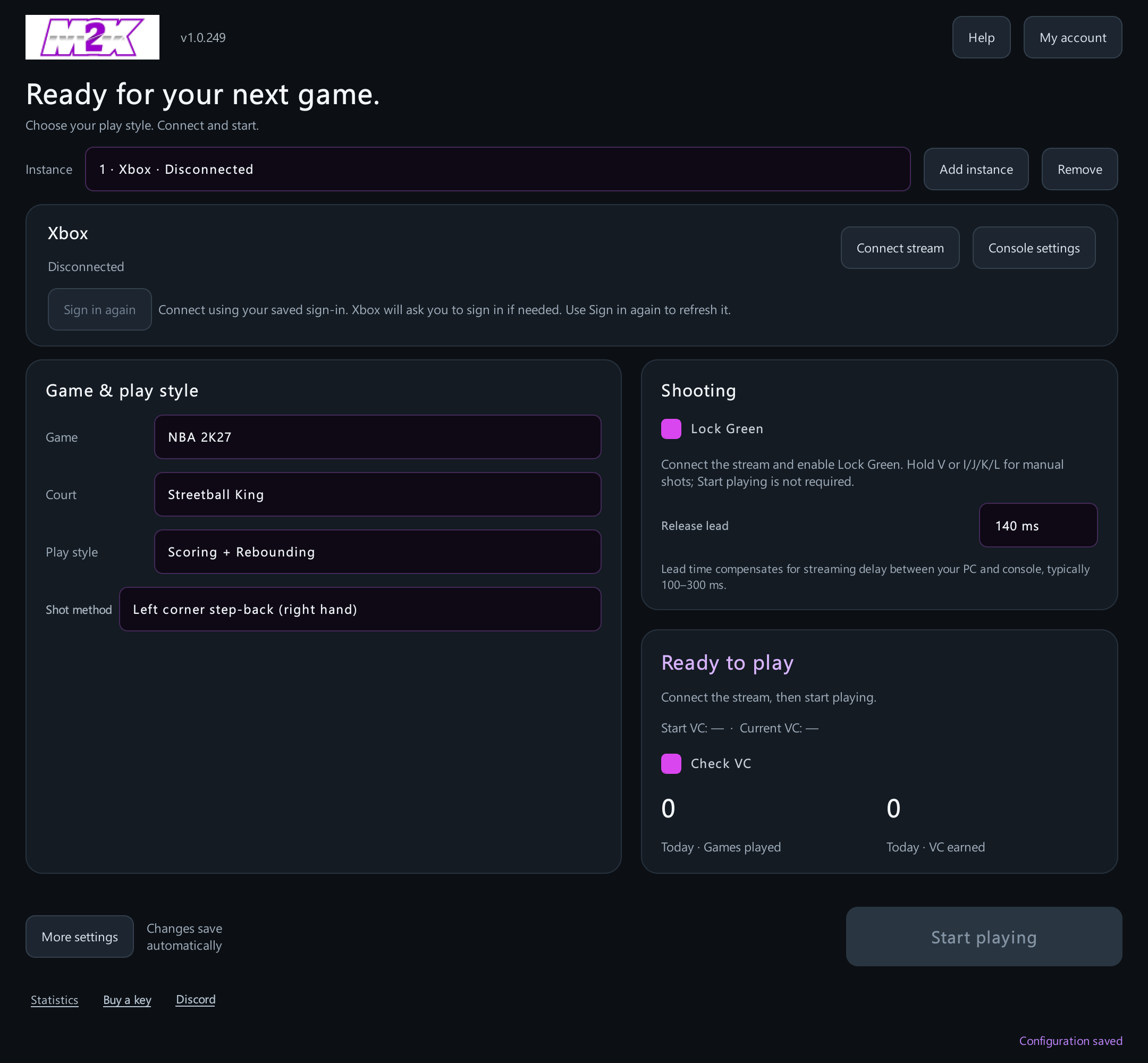
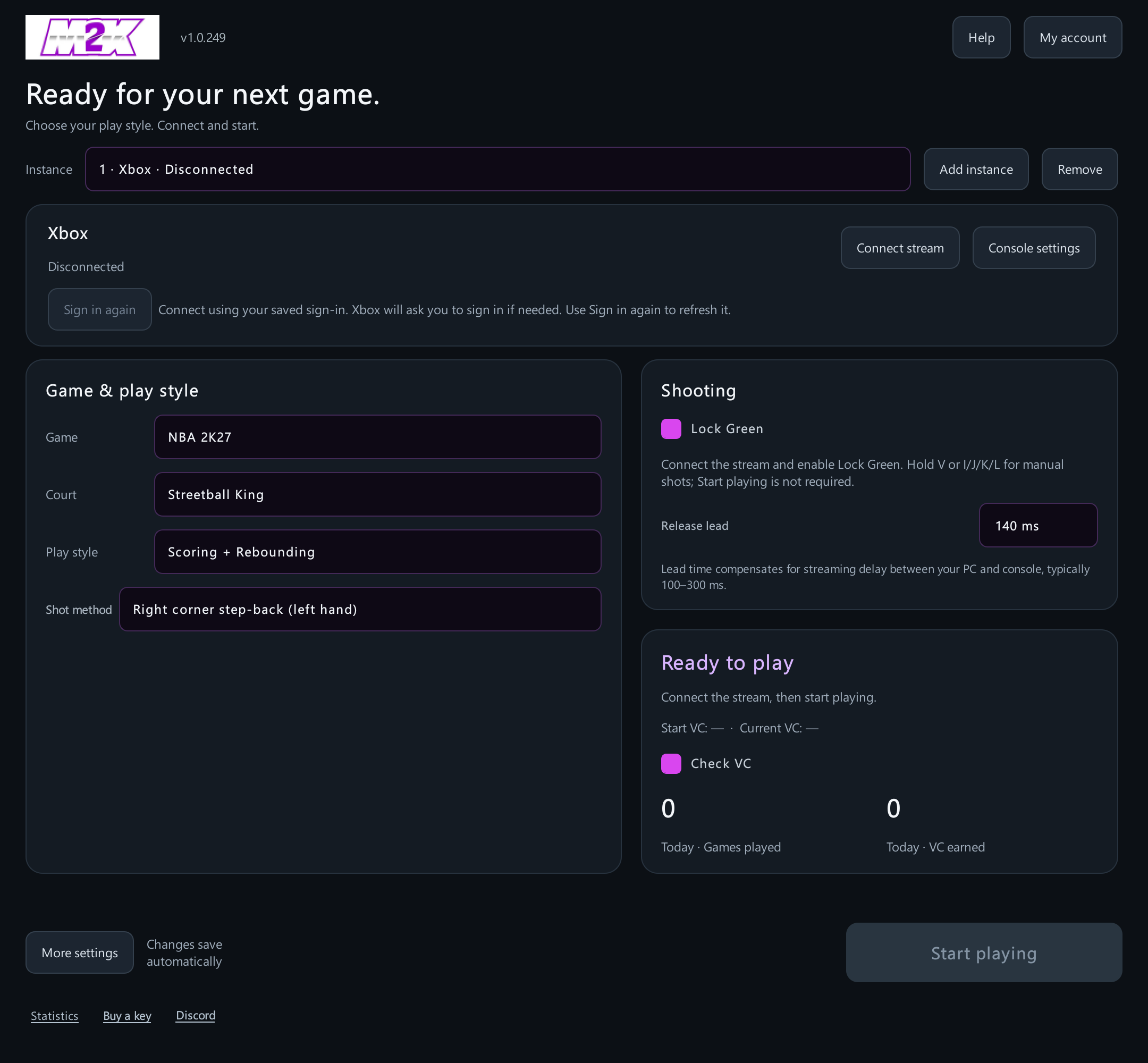
The old “Corner three (right)” method has been replaced by the right corner step-back. Open Court's separate Corner option remains available.
7. Adjust Distance
Distance runs from 0 to 10: smaller is closer to the basket, larger is closer to half-court. This is a relative position scale, not meters or shot timing.
- Keep one shot method and animation while finding a suitable distance. Observe a few arrivals before changing it.
- If the action starts too far inside, increase Distance. If it starts too far out, decrease it. Start with one-unit changes and leave release lead unchanged.
- Movement slows about two units before the target. At Distance 8, slowdown normally begins around 10, then the shot or screen action starts near 8. The slowdown point is not the shooting point.
- Distance controls where the action starts. A retreat, lateral move or sprint still changes the eventual release position. Camera perspective, player speed and streaming also affect what you see.
- Left/right corner step-backs follow their court launch areas without a Distance setting. Open Court uses its own two-point, three-point or corner positioning.
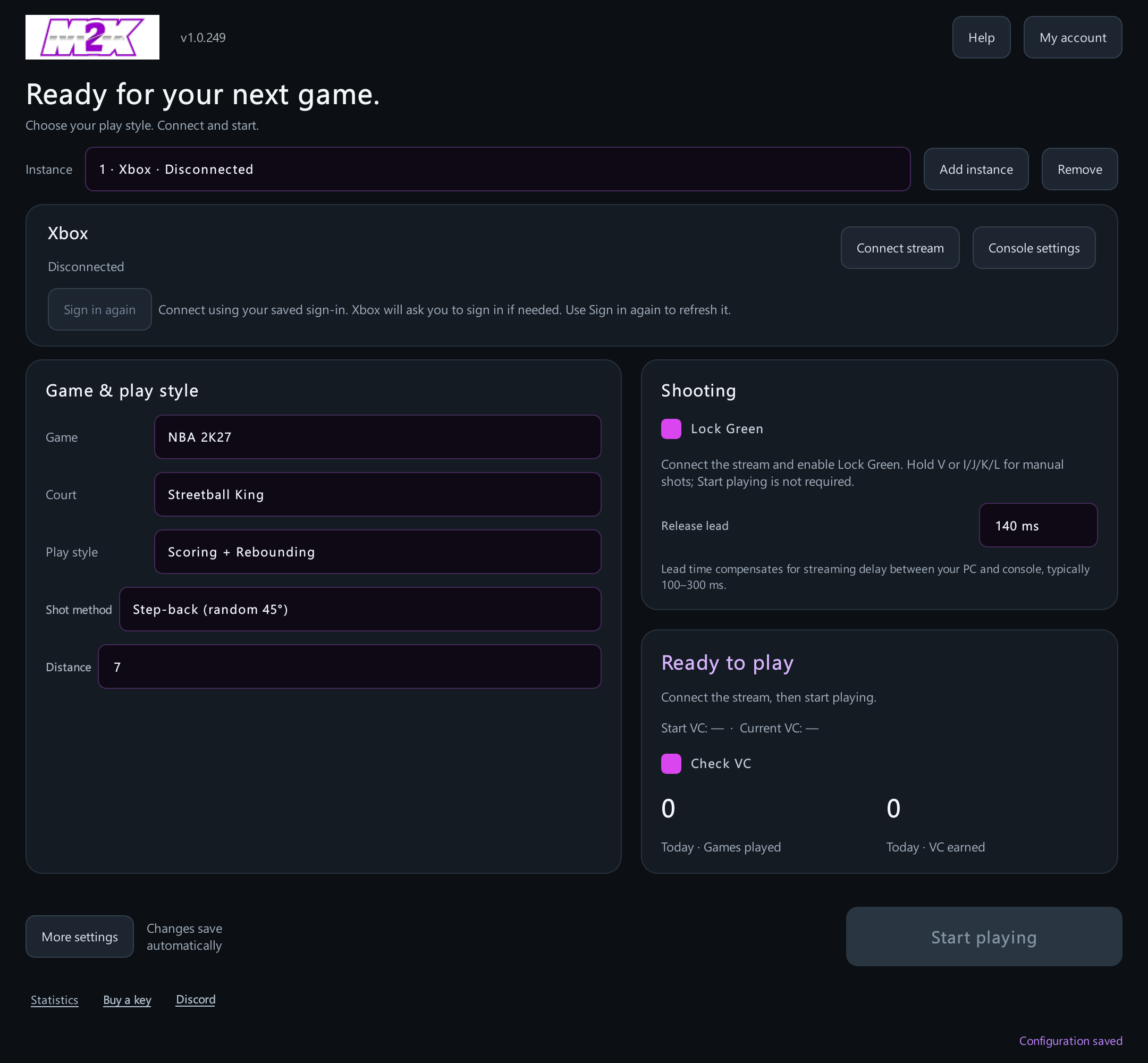
8. Set up Lock Green and release lead
Enable Lock Green and enter Release lead on the right. The range is 0–500ms, with 140ms as the default. The app follows the current meter, predicts when it reaches the top of the green window and releases early by the chosen amount. This version uses your entered value.
Larger lead = earlier release. Smaller lead = later release. It compensates for the PC-to-console streaming path. A common adjustment range is around 100–300ms, but this is not a network ping measurement or a universal value for every PC.
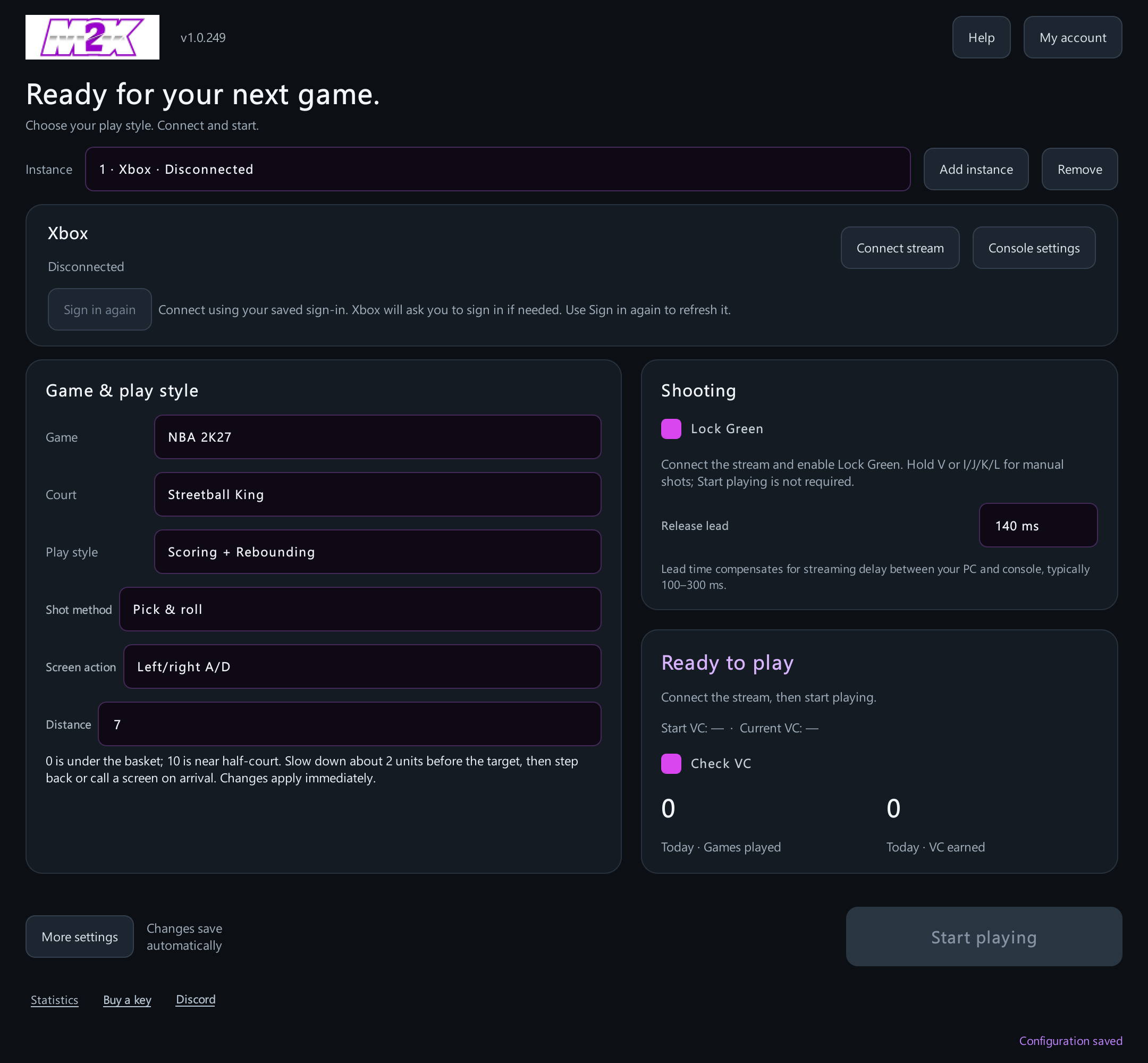
| What you observe | Adjustment |
|---|---|
| The bar stops before reaching the top; consistently early | Decrease release lead so the app releases later. |
| The bar reaches its highest point, then returns before stopping; consistently late | Increase release lead so the app releases earlier. A low final point alone does not prove an early shot. |
| Timing is close, with small deviations | Try 5ms changes. For a clear repeated error, start with 10ms changes. |
| The box follows the wrong object or misses the meter | Check the purple indicator, Tube meter, obstruction and stream clarity first. Lead changes cannot repair a position-recognition problem. |
Keep the account, animation, shot method, distance and connection stable. Observe 3–5 comparable shots, then change one setting. Recheck after changing the animation, console, PC or network. Player attributes, stamina, coverage and animations also affect results; one contested shot is not a useful calibration sample.
Manual keyboard shooting
After connecting and enabling Lock Green, you do not have to start an automatic task. Click the stream picture to focus it, then hold V or I/J/K/L to shoot, optionally with O. After the software releases the shot, physically release your key before starting another shot. In manual play, you control movement keys and O yourself; automatic corner tasks release those keys together.
Fixed shot timing instead
Disable Lock Green to display Shot timing. This is how long the shot key is held. For a late shot, reduce the hold time; for an early shot, increase it. This is the opposite adjustment direction from Release lead—do not confuse the two settings.
9. Other settings to check
| Setting | What to do |
|---|---|
| Assist pass style | Choose normal or flashy passing under Assist + Rebounds. Flashy passing uses R1/RB plus right stick up. |
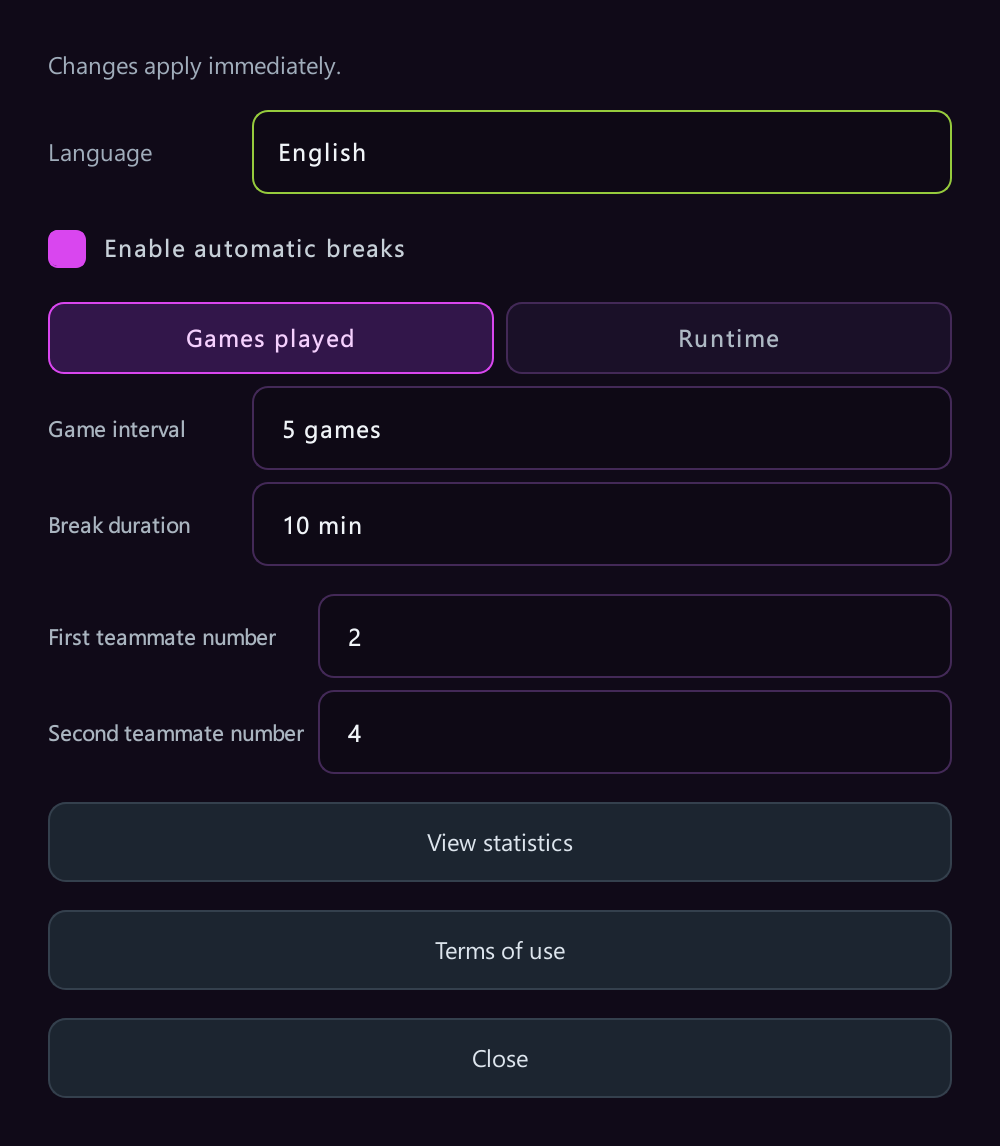
| Teammate numbers | Start at 1 and use the actual list position, not a name or jersey number. Scoring places your player in slot 2 and teammates in slots 1/3; Assist places your player in slot 3 and teammates in slots 1/2. |
| Automatic rest | Enable in More settings. Choose a game-count or elapsed-time interval, then set rest minutes. |
| Check VC | When enabled, open the menu before the run and after each game to read total VC. When off, the app does not enter the menu just to check the balance. A blocked or failed read is skipped and retried after the next game. |
| Start VC / Current VC | Start VC is the first successful balance read in this run. Current VC is the latest successful read. A dash means unread. Your wallet total is not today's earnings. |
| Match VC and rewards | Settlement records match earnings. Only the balance increase left after accounting for pending match payouts becomes a reward. Delayed balance refreshes do not duplicate games or rewards. |
| Website statistics | Open Statistics at the bottom left and sign in to the corresponding brand and account/key. Switching Chinese/English does not change your account, currency or purchase destination. |
| Purchase and community | Bottom-left links open this brand's purchase page and Discord. Kernel provides QQ and Discord; Magic provides Discord. |
10. Keyboard mapping and starting a task
Click the stream window before manual keyboard input. The mappings follow the same controller functions on PS5 and Xbox.
| Keyboard | Controller function |
|---|---|
| W / A / S / D | Left stick movement |
| I / J / K / L | Right stick up / left / down / right; combine for diagonals |
| Q / E | L1 / R1; Xbox LB / RB |
| U / O | L2 / R2; Xbox LT / RT |
| Enter / Esc / C / V | PS5 Cross / Circle / Triangle / Square; Xbox A / B / Y / X |
| N / M | L3 / R3; left/right stick click |
| F | Options / Menu |
Match Game, Court and Play style to the actual game screen before selecting Start playing. Stop the current task with Stop. If the stream stays connected, manual key mapping and enabled Lock Green remain available. Defense moves to the paint center and holds hands up, releasing on a 24-second pause or a switch to offense.
11. Troubleshooting and support recordings
| Problem | First step |
|---|---|
| Player stays still, or position/possession looks wrong | Check the selected instance and its picture, the purple basketball indicator on every account, then Court and Play style. |
| Q does not call a screen, or the app keeps requesting the ball | Check possession and whether the screen icon appears. Record continuously from the switch to offense. |
| Movement continues on arrival | Some modes intentionally carry movement into the shot. Random 45° stops it after about 500ms; corner step-backs stop it at Lock Green release. |
| Xbox needs another account or fresh authorization | Select Sign in again on the main panel, complete Microsoft authorization, then connect. |
| Only one of several instances fails | Check that instance's console account, in-game indicator, animation and release lead. Do not assume another stream's lead is correct for it. |
| VC read fails or Start VC is blank | Enable Check VC. If the top-right balance is obscured initially, play a game and let the next post-game read run. |
| Website statistics look stale | Check account, instance and date filters; refresh after a game. Wallet and settlement updates may arrive at different times. |
| You want to record actions for development | Use Start recording actions in the diagnostic app. Offense-only is the default; turn it off before recording menus. Held-key durations and key-up events are preserved. Send the whole session directory. |
Include version, PS5/Xbox, single/multiple instances, court, shot method, distance, release lead and a continuous recording or diagnostic folder. Do not send license keys, passwords or login Tokens.
Open 2K Magic statistics or the purchase page.